The DNR Garmin is a GPS
extension that works with ArcView, ArcMap (8.x, 9.x, 10.x), Landview or
ArcExplorer.
With this extension you
can transfer your Garmin GPS waypoints, tracks or routes directly to one of the
above programs above and save your data as Graphics or Shapefiles.
In our example we will
show how to use DNRgarmin with ArcMap. Before launching the
program you should plug your device into the PC.
Plug in the cable in the one of the USB Ports
if you are using a “USB” cable or into the “Serial” port if you are using that
type of cable.
Please note if you are using Windows XP a
“USB” cable might not work properly. Our advice is to use the “Serial” port if
you are working on XP.
Step 1:
Launch the program by double clicking on the desktop
icon.
Step 1-1:
The program interface will appear like below :

Step1-2:
The program
will try to connect to your GPS device and Check if your device is properly connected to
the port and follow the instructions in the message.
Step 2:
Configure your program by clicking on “GPS” à “Set Port”
à “USB” (if you are using USB cable) or “Port
1” (if you are using Serial).

If your GPS is connected to the
program you should see “Connected” in the bottom left corner of the program
window.
The program is ready to retrieve
your data.
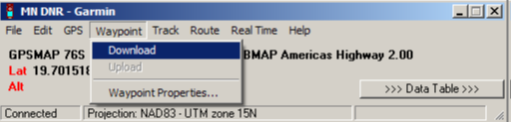
Click on “Waypoint” and
then “Download” to download your waypoints into the program.
Or click on “Track” => “Download” if
you want to download your Tracks.
After the data is downloaded you will receive a
message stating the number of records received.
Step 3:
Click on “>>> Data Table >>>”
to see the properties of the downloaded data.
Now you are able to edit your data as needed.
After editing your data, save your data as a shapefile
to use it in ArcMap.

Please note: DNRgarmin does not create a projection
file (*.prj). You will need to define the projection in ArcCatalog or ArcMap to
have a projection associated with your shapefile.


