Affichage des articles dont le libellé est Tools. Afficher tous les articles

dimanche 9 juin 2013

OpenLayers : A great plug-in to display Google Maps (and others) in QGis

I just found a plug-in extension for QGis that would allow me to  add a number of image services to your map canvas :


Installing the Plugin

The OpenLayers plugin is installed like all other Python plugins. From the the Plugins menu in QGIS, choose Fetch Python Plugins. This brings up the plugin installer. To find the plugin, enter openlayers in the Filter box, then select OpenLayers Plugin from the list. Once it’s highlighted, click the Install plugin button. This will download the plugin from the repository, install it, and load it into QGIS.
 
Using the Plugin

The OpenLayers Plugin uses your view extent to fetch the data from the service you choose. For this reason you should load at least one of your own layers first. Since each of the services are expecting a request in latitude/longitude your layer either has to be geographic or you must enable on the fly projection.

To add one of the services you have two choices; you can pick the service from the Plugins->OpenLayers plugin menu or you can use the OpenLayers Overview. The Overview opens a new panel that allows you to choose a service from a drop-down list. Click the Enable map checkbox to enable the drop-down list and preview the service you want to add. If you are happy with what you see, you can add it to the map by clicking the Add map button.

KML to Shape

The KML2Shape  tool is a superb and easy tool to convert KML file to a shape created bu Zonum solution


All we need to do is just create the KML or KMZ file on GoogleEarth then simply go to the Zonum’s web. Click New  then upload your KML/KMZ file using Upload KML/KMZ button. Wait until the dialogue box closed then click on Process KML. It will result just like below inside the box:

Entities found:
# Points: 0
# Paths: 1
# Inner Polygons: 0
# Outer Polygons: 0
 
Make sure you choose the appropriate Shapes to export. Then just simply click on Export SHP button. A new window will appear, click on Download, it is gonna download a zip file. Extract the file. You’ll find 4 files.

Website : KML2shape

lundi 18 mars 2013

Learn How to Create a Map Topology in ArcGIS 10.1


When editing map data, you often have features that share boundaries. For example, you may have a forest border that meets the edge of a stream or a lake polygon that shares borders with land-cover polygons and shoreline features. Editing with topology can reduce the chance of introducing inadvertent gaps or overlaps between features that share geometry. You can create a simple map topology to make updates simultaneously to all features that are coincident.

Aligning features and editing coincident geometry through topology has been made easier with ArcGIS 10.1. The new Select Topology dialog box consolidates into one step the process of creating and activating a map topology, which is available for all license levels of ArcGIS for Desktop.
To create a map topology in ArcMap, first add all the layers you want to edit together to your map. You can edit geodatabase feature classes or shapefiles with a map topology.
Step one: Click Customize, point to Toolbars, and add the Editor and Topology toolbars to ArcMap. The Topology toolbar has been redesigned in ArcGIS 10.1 so that it contains only commands that are directly related to topology. All other commands previously on this toolbar, such as Construct Polygons, have been moved to the Advanced Editing toolbar.

The Topology toolbar


Step two: On the Editor toolbar, click the Editor menu and click Start Editing to begin an edit session.

The Editor toolbar


Step three: On the Topology toolbar, click Select Topology. This opens the Select Topology dialog box.

On the Topology toolbar, click Select Topology.


Step four: Check the layers that should be edited together. In ArcGIS 10.1, map topology uses layer information and reflects layer properties, including name and visibility, rather than the properties of the underlying feature class as it did in previous releases. Annotation, dimension, or feature classes that participate in a geometric network cannot be included in a map topology.

Step 4

Step five: Optionally, click Options to view the cluster tolerance, which is the distance that defines how close together edges and vertices must be to be considered coincident. Because ArcMap automatically determines the minimum possible cluster tolerance, you should generally use the default, because increasing the value can cause features to collapse or distort. To get information about what you can do with topology, click the About editing topology link. This opens the related topic in the help system.

Step six: Click OK.
That's all you need to do to set up a map to edit coincident features. If you happened to click a topology editing tool without already having a topology set up, you would be prompted to create a map topology using this dialog box.
Now that you have an active topology, edit with the tools on the Topology toolbar to make sure your features remain coincident. Use the Topology Edit tool to select edges so that you can move, modify, and reshape them. If you want to select multiple edges that form a path so you can reshape them all at the same time, you can either use the new Topology Edit Trace tool or simply hold down the left mouse button using the Topology Edit tool.
To learn more about enhancements to editing features with topology, see the Editing topology and New tools for aligning data sections in "What's new for editing in ArcGIS 10.1."


thanks to 
By Rhonda Glennon
ArcGIS Product Engineer

mercredi 13 février 2013

DEM Surface Tools for ArcGIS


Description:  This extension provides you with tools to generate a variety of surface characteristics of a landscape, using both projected and unprojected (i.e. latitude / longitude) digital elevation model (DEM) rasters. These tools include:
  1. Surface Area and Ratio of a landscape
  2. Slope, with 3 slope algorithm options
  3. Aspect, with 3 aspect algorithm options, and an additional tool to apply a traditional directional Aspect symbology to an existing Aspect raster.
  4. Hillshade, with optional hypsometric tinting
  5. Multi-directional Oblique-Weighted Hillshade, with optional hypsometric tinting
  6. Seven types of Landscape Curvature

ArcGIS has many useful tools for calculating slope, aspect, hillshade and curvature from DEM rasters. This extension offers some advantages over these existing tools in that:

  • These tools correctly handle Latitude / Longitude Data: The existing ArcGIS tools typically do not work well with data in a geographic coordinate system (i.e. Latitude / Longitude coordinates). They expect the vertical units of a digital elevation model to be the same as the horizontal units, and at best they only allow you to enter in an adjustment factor (generally called a "Z-factor") to adjust your Z-units to your X/Y-units. This Z-factor adjustment method is cumbersome to implement with latitude/longitude coordinate systems because the correct Z-factor is both hard to calculate and changes with latitude. Geographic data is especially confounding because the X-units are not the same as the Y-units. Both are in "degrees", but a degree in latitude (Y-units) is not the same distance as a degree in longitude (X-units).                                                                         Unfortunately, most free elevation data available online is only available in latitude/longitude coordinates. This data can be projected, but projecting raster data introduces errors in resolution and precision (see horizontal and vertical artifacts on illustration in manual). This extension modifies the algorithms used to calculate common morphological characteristics of the landscape so that they accurately work with latitude/longitude data without projecting the data or using Z-factor adjustments. All methods are described in detail in the manual, but in general this extension will always automatically detect the coordinate system of the raster and use the method appropriate for that coordinate system

  • These tools offer several options not available in the standard ArcGIS toolsIncluding multiple slope and aspect algorithms, optional hypsometric shading for hillshades, the MDOW model for hillshades, and many more options for landscape curvature. 
  • Surface Area and Ratio: This extension allows you to generate Surface Area and Surface Ratio rasters from an existing Elevation raster. The cell values for these new rasters reflect the surface area and (surface area) / (planimetric area) ratio for the land area contained within that cell's boundaries. Both Surface Area and Surface Ratio provide useful indices of topographic roughness and convolutedness, and can give a more realistic estimate of the land area available than you can get from the simple planimetric area. 

  • These tools do not require Spatial Analyst: This extension uses only standard ArcGIS ArcObjects functions and therefore does not require a license for either Spatial Analyst or 3D Analyst.


Requires:  ArcGIS 9.2 or better, at any license level, or ArcGIS 10.

Important:  This extension does not require Spatial Analyst or 3D Analyst.  It will work just fine without any add-on extensions

Thanks to  Jeff Jenness    

To download the extension :


dimanche 10 février 2013

Hawth’s Tools – Free Tools for Spatial Analysis

Hawth’s Analysis Tools provides a suite of solutions for tasks common in spatial analysis. Specifically developed for ecological studies, these tools can be used in any application for analyzing spatial data. They extend (and in some cases simplify) core ArcGIS functionality that is not available out-of-the-box. The extension consists of more than fifty tools that cover a broad range of analysis types including analyzing, sampling, and editing vector as well as raster data, and tools for common operations in tables and CSV files. All tools and descriptions can be found here:

Tool Descriptions


Analysis Tools
Intersect Point Tool
Distance Between Points (Within Layer)
Distance Between Points (Betw. Layer)
Count Points In Polygons
Polygon In Polygon Analysis
Sum Line Lengths in Polygons
Line Raster Intersection Statistics
Enumerate Intersecting Features
Line Metrics
Sampling Tools
Create Random Selection
Random Selection Within Subsets
Generate Random Points
Generate Regular Points
Conditional Point Sampling Tool
Create Vector Grid (lines/polygons)
Create Sample Shapes (various shapes)
Generare Random 3D Points
Animal Movements
Create Minimum Convex Polygons
Calculate Movement Parameters
Convert Locations To Paths
Convert Paths to Points
CRW Simulation I
CRW Simulation II
Kernel Tools
Fixed Kernel Density Estimator
Batch Fixed Kernel Density Estimator
Percent Volume Contour

Raster Tools
Clip Raster
Clip Raster By Polygons
Landscape Characterization (fast)
Extract Raster Edge
Thematic Raster Summary (by polygon)
Zonal Statistics ++ (by polygon)
Spatial Replace Tool
Maximum Grid Separation Tool
Cellular Automata (1D x Time)
Grid Spread (Cellular Automata)
Raster Pixel Type Conversion
Table Tools
Add Area Field To Table
Add Length Field To Table
Add XY To Table
List Unique Values
Sum Values
Delete Multiple Fields
Add XY Line Data (creates line layer)
CSV Management Tool
Vector Editing Tools
Create Buffers (Retain Attributes)
Vector Rotation and Shifting Tool
Snap Points To Lines Tool
Intersect Lines (Make Points)
Split Vector Layer By Unique Value Field
Specialist Tools
River Sample Extraction
Point Redistribution Tool
PLSS Point Finder
Julian Day Lookup

Other Tools
Digitize XY Coordinates

The tools run on ArcGIS 9.x at the ArcView, ArcEditor, and ArcInfo license levels. *These tools do not support on-the-fly projection changes, so it is important that tools that use more than one input layer have the same projection.


Download:
http://www.spatialecology.com/htools/download.php

samedi 2 février 2013

Tools for Comparing and Analyzing Geodatabase Schemas

I found a very intersting  suite of tools written in Python for analyzing components of a geodatabase and for finding the differences between geodatabase schemas and thanks to Brooke Reams , Geospatial Analyst at Esri, for this suite. 
 The tools are accessible through an ArcGIS Toolbox called SchemaInspector.tbx. They are grouped into three categories:
1. Analyzer Tools
2. Diff & Compare Tools
3. Diff Tools

There are five tools under the Analyzer Tools toolset. These tools are for printing properties of a single geodatabase component. Each tool has parameters for the input workspace and the output text file (the output text file does not have to pre-exist).
1. Analyze Domains
- Prints properties to a text file for each domain in a workspace including Domain Type, Range, Field Type, Merge Policy, and Split Policy.

2. Analyze Feature Classes
 - Prints properties to a text file for each feature class in a workspace (geodatabase or feature dataset) including Shape Type, Shape Field Name, Feature Type, Spatial Index, Has M, and Has Z.

3. Analyze Fields
- Prints properties to a text file for each selected field in a feature class including Type, Alias, Base Name, Domain, Editable, Nullable, Length, Precision, Required, and Scale.

4. Analyze Relationship Classes
- Prints properties to a text file for each relationship class in a workspace including Backward Path Label, Cardinality, Class Key, Destination Class Names, Forward Path Label, Attachment Relationship, Attributed, Composite, Reflexive, Key Type, Notification, and Origin Class Names.

5. Analyze Tables
- Prints properties to a text file for each table in a workspace including Has OID and OID Field Name.


There are six tools under the Diff & Compare Tools toolset. These tools are for comparing particular geodatabase components between two workspaces. Each tool has parameters for the two schemas to compare and the output text file.
 1. Domain Diff & Compare
- Prints the names of domains that are not common between workspaces to a text file. Searches common domains and prints domain names and properties (same properties as the Analyze Domains tool) for domains with the same name but with different properties.

2. Feature Class Diff & Compare
- Prints the names of feature classes that are not common between workspaces to a text file. Searches both standalone feature classes and feature classes in feature datasets. Searches common feature classes and prints feature class names and properties (same properties as the Analyze Feature Classes tool) for feature classes with the same name but with different properties.

3. Field Diff & Compare (by Feature Class)
- Prints the names of fields that are not common between feature classes to a text file. Searches common fields and prints field names and properties (same properties as the Analyze Fields tool) for fields with the same name but with different properties.

4. Field Diff & Compare (by Workspace)
- Prints the names of fields that are not common between all feature classes in the workspaces to a text file. Searches both standalone feature classes and feature classes in feature datasets. Searches common fields and prints field anmes and properties (same properties as the Analyze Fields tool) for fields with the same name but with different properties.

5. Relationship Class Diff & Compare
- Prints the names of relationship classes that are not common between workspaces to a text file. Searches common relationship classes and prints relationship class names and properties (same properties as the Analyze Relationship Classes tool) for relationship classes with the same name but with different properties.

6. Table Diff & Compare
- Prints the names of tables that are not common between workspaces to a text file. Searches common tables and prints table names and properties (same properties as the Analyze Tables tool) for tables with the same name but with different properties.


There is one tool under the Diff Tools toolset. This tool is called Workspace Diff and combines all of the tools under Diff & Compare toolset into a single tool. There are parameters for the two schemas to compare and the output text file.


All of the tools can be used with Basic, Standard, and Advanced license levels. The tools can be used with ArcGIS 10.0 or higher, with the exception of the Analyze Domains tool, the Domain Diff & Compare tool, and the Workspace Diff tool which require ArcGIS 10.1 or higher (to use the Workspace Diff tool on 10.0, simply comment out the lines that compare domains [361 - 387] in the ws_diff.py file).

The SchemaInspector.tbx and all of the tools described above can be downloaded from the Geospatial Database for free. Right click on the link below and select Save As... to download the zip containing the .tbx and .py files. Unzip all of the files to the same folder location (toolbox and scripts use relatives paths). The tools can be accessed and executed from both ArcMap and ArcCatalog.

Schema Inspector Toolbox


Below is an image of the Workspace Diff tool and the output text file that is created when the tool is executed.


SchemaInspector.tbx


lundi 14 janvier 2013

Geographic Translator : MSP Geotrans 3.2

 MSP Geotrans 3.2

Geotrans 3.2 has been released. Geotrans is the coordinate conversion application or a geographic translator program among a wide variety of coordinate systems, map projections, and datums. Geotrans runs in Microsoft Windows, LINUX and UNIX environments. GEOTRANS can also be used to convert large numbers of coordinates contained in either text files (.txt) or comma separated values (.csv).

To convert a set of coordinates, simply select the coordinate system or map projection, the datum, in which your coordinates are defined, then enter the source coordinates, select the coordinate system or map projection, and the datum, to which you want the coordinates to be converted, and click on the Convert button. The resulting coordinates will be displayed.


 Download :


dimanche 13 janvier 2013

AutoDEM (create DEM from scanned topographic maps)

AutoDEM

AutoDEM (aka as AutoMNT) is a freeware GIS software to create Digital Elevation Models (DEM) from scanned topographic maps for Windows.
Through different data layers (map, contours, DEM, etc.), AutoDEM provides many tools for :

    Topographic map analysis
    Contour lines extraction and reconstruction
    Contours to DEM interpolation and DEM analysis
    DEM to TIN conversion
    Toponyms extraction

Most of the worldwide file formats used in the GIS community are supported. AutoDEM can also directly import data from web servers (TerraServer, WebMapService, WFS, …) 

What AutoDEM can do
Here are most relevant features of the software :

    Multi-layers interface to manage original map, extracted contours, elevation grid and triangular mesh.
    Common classical image editing tools (zoom, hand, selection, pen, eraser, lines etc.)
    Support every common image file formats supported by GDAL (JPEG, PNG, PGM, PNM, BMP, GIF …). Complete list
    Support most DEM file formats supported by GDAL. Complete list
    Plug-in based architecture through a DLL mechanism (a Development Kit is coming)
    Contour lines extraction from map through different filters
    Contour lines reconstruction and edition
    Tools to semi-auto set contour lines' elevations
    Contour lines interpolation with different methods like geodesic distances, Partial Differential Equations, Inverse Distance Weighted Averaging, Radial Basis Functions and kriging
    Elevations related tools
    Embossing filter to preview the terrain rendering
    Realtime 3D visualization and navigation with the Level of Detail (LOD) Duchaineau's `Realtime Optimally-Adapting Meshes' (ROAM) algorithm included (need an OpenGL graphic card)
    DEM to regular or irregular (TIN) mesh generation and export
    Import maps and DEM from WebMapFeature (WMS) or TerraServer
    Lot of other features…

As AutoDEM is still a research tool, it's updated very soon and will be developped for many years, and you are encouraged to ask us the improvements you would like to see and help us to make AutoDEM an easy-to-use and powerful tool. 


Download :

lundi 31 décembre 2012

Split Layer By Attributes for ArcGIS


split layer by attribute

This is an intresting tool I used a lot to split a layer by attribute .

The tool takes a single shapefile and splits it into many shapefiles based on the unique values of a chosen field

1. Open ArcMap
2. Open Arctoolbox. 
3. Right click on the top level of the Toolbox and you should see a menu come up and one of the choices will be add toolbox. 
4. Navigate to the python directory and add the .tbx file
.

Download :

http://resources.arcgis.com/gallery/file/geoprocessing/details?entryID=37AEB018-1422-2418-A036-CA6D9920F808


jeudi 27 décembre 2012

How to upload Geospatial Data from ArcMap to a Garmin GPS


Step 1:
Connect your GPS to your computer with the serial port connector or USB and turn your GPS.

Step 2:
Start DNR Garmin. You should see a box almost or exactly identical to the one below.
DNR

Step 3:
Set the projection needed  (you should only have to do this once) and press OK
- refer to screenshots below:
DNR


Step 4:
Start ArcMap either by itself or from a Toolkit folder that you are working on.


Step 5:
If you want to upload a  shapefile you will need to highlight the layer name that you wish to upload.

Step 6:
After you have the layer selected you need to go back to DNR Garmin (It should already be open)
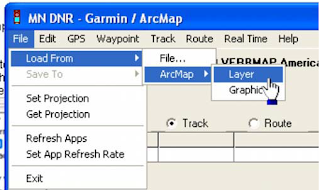
and click on File>Load From>ArcMap>Layer. You can also upload a graphic from ArcMap as well,
you just need to digitize the graphic (point, line or polygon) and select it with your pointer, then
click on graphic instead of layer (in the step displayed below).
DNR
Ajouter une légende
Step 7 :
After you click on Layer, the data will upload and your screen should look something like the screen capture below. By default, points are brought in as waypoints and polygons and lines are brought in as tracks.

DNR
Step 8:
The next step is to click on track (since we loaded a polygon) and the click on upload.

DNR


 Step 9:
You should verify on your GPS that the data has been transferred correctly before you go to the field. To do this you can use the pan map feature on your GPS and zoom into the anticipated location of your data and verify that it has been transferred correctly.


mardi 25 décembre 2012

Using the DNR Garmin Extension to Download Waypoints from a GPS Unit


The DNR Garmin is a GPS extension that works with ArcView, ArcMap (8.x, 9.x, 10.x), Landview or ArcExplorer. 
With this extension you can transfer your Garmin GPS waypoints, tracks or routes directly to one of the above programs above and save your data as Graphics or Shapefiles.
In our example we will show how to use DNRgarmin with ArcMap. Before launching the program you should plug your device into the PC.

Plug in the cable in the one of the USB Ports if you are using a “USB” cable or into the “Serial” port if you are using that type of cable.
Please note if you are using Windows XP a “USB” cable might not work properly. Our advice is to use the “Serial” port if you are working on XP.

Step 1

Launch the program by double clicking on the desktop icon.  

Step 1-1:
The program interface will appear like below :

DNR_1


Step1-2:
 The program will try to connect to your GPS device and Check if your device is properly connected to the port and follow the instructions in the message.
Step 2:

Configure your program by clicking on “GPSà Set Portà USB” (if you are using USB cable) or “Port 1” (if you are using Serial).
DNR_2

If your GPS is connected to the program you should see “Connected” in the bottom left corner of the program window.
The program is ready to retrieve your data.
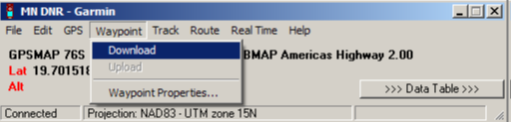
Click on “Waypoint” and then “Download” to download your waypoints into the program.
Or click on “Track” => “Download” if you want to download your Tracks.

DNR_1


After the data is downloaded you will receive a message stating the number of records received.
Step 3:

Click on “>>> Data Table >>>” to see the properties of the downloaded data.
Now you are able to edit your data as needed.
After editing your data, save your data as a shapefile to use it in ArcMap.

DNR_Garmin


Please note: DNRgarmin does not create a projection file (*.prj). You will need to define the projection in ArcCatalog or ArcMap to have a projection associated with your shapefile.

lundi 24 décembre 2012

MapInfo Tools

Mapinfo


Mapinfo Tools  presents an important resources for mapinfo users, you can find a wide range of interesting Utilities and add- ons that help to increase the functionality of MapInfo and make work easier

www.mapinfotools.com