Affichage des articles dont le libellé est Tutorials. Afficher tous les articles

dimanche 13 janvier 2013

Image Analysis for ArcGIS


Image Analysis  for ArcGIS

Interesting Courses  of image analysis for  ArcGIS


Table of content :

Introducing Image Analysis for ArcGIS . . . . . . . . . .. . . . . . . . 1
Quick-start tutorial . . . . . . . . . . . . . . . . . . . . . . . ..…... . . . . . 9
Applying data tools . . . . . . . . . . . . . . . . . . . . ... . ….. . . . . . . 51
Using Data Preparation  . . . . . . . . . . . . . . . . ...... .. . . . . . . . 67
Performing Spatial Enhancement . . . . . . . . . . . . . . . . . . .  . 79
Using Radiometric Enhancement . . . . . . . .. . . . . . . . . . . . . 95
Applying Spectral Enhancement  . . . . . . . . . . . . ... . .. . . . . 109
Performing GIS Analysis  . . . . . . . . . . . . . .. .. . . . . . . .. . . . 121
Using Utilities  . . . . . . . . . . . . . . . . . . . . . . ..….. . . . . . . . . . 137
Understanding Classification . . . . . . . . . …. . .. . . . . . . . . . 145
Using Conversion  . . . . . . . . . . . . . . . . . . . . . . ……. . . . . . 159
Applying GeoCorrection tools  . . . . . . . . . . . .. … . . . . . . . . 167

To download  the course :

vendredi 11 janvier 2013

Network Analyst : Route Optimization


The Route solver is the best way to optimize a given circuit so we can find the best path between any number of stops and. Let’s pretend we are tourists who want to see some interesting sites in a city and need some help planning our day so we’ll spend the least amount of time driving.

Step1:

-       Open ArcMap and add  the network dataset
-       Check on the Network Analyst toolbar, and then select New Route from the drop down menu. Also, click the button right next to the drop down menu to show the Network Analyst Window.

Network Analyst : Route Optimization


Step2:

-Right now we need to load the stops we can create them manually by activating the Create Network Location Tool and clicking on the screen while your pointer is in the flag with crosshairs shape. Or, we can load them from another layer

Network Analyst : Route Optimization 2


Step3:
 Now click the Solve button and  everything is  ok !

Network Analyst : Route Optimization 3

lundi 31 décembre 2012

Split Layer By Attributes for ArcGIS


split layer by attribute

This is an intresting tool I used a lot to split a layer by attribute .

The tool takes a single shapefile and splits it into many shapefiles based on the unique values of a chosen field

1. Open ArcMap
2. Open Arctoolbox. 
3. Right click on the top level of the Toolbox and you should see a menu come up and one of the choices will be add toolbox. 
4. Navigate to the python directory and add the .tbx file
.

Download :

http://resources.arcgis.com/gallery/file/geoprocessing/details?entryID=37AEB018-1422-2418-A036-CA6D9920F808


jeudi 27 décembre 2012

How to upload Geospatial Data from ArcMap to a Garmin GPS


Step 1:
Connect your GPS to your computer with the serial port connector or USB and turn your GPS.

Step 2:
Start DNR Garmin. You should see a box almost or exactly identical to the one below.
DNR

Step 3:
Set the projection needed  (you should only have to do this once) and press OK
- refer to screenshots below:
DNR


Step 4:
Start ArcMap either by itself or from a Toolkit folder that you are working on.


Step 5:
If you want to upload a  shapefile you will need to highlight the layer name that you wish to upload.

Step 6:
After you have the layer selected you need to go back to DNR Garmin (It should already be open)
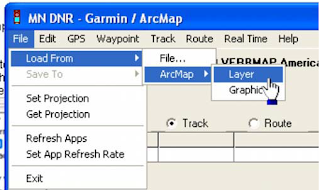
and click on File>Load From>ArcMap>Layer. You can also upload a graphic from ArcMap as well,
you just need to digitize the graphic (point, line or polygon) and select it with your pointer, then
click on graphic instead of layer (in the step displayed below).
DNR
Ajouter une légende
Step 7 :
After you click on Layer, the data will upload and your screen should look something like the screen capture below. By default, points are brought in as waypoints and polygons and lines are brought in as tracks.

DNR
Step 8:
The next step is to click on track (since we loaded a polygon) and the click on upload.

DNR


 Step 9:
You should verify on your GPS that the data has been transferred correctly before you go to the field. To do this you can use the pan map feature on your GPS and zoom into the anticipated location of your data and verify that it has been transferred correctly.


mardi 25 décembre 2012

Using the DNR Garmin Extension to Download Waypoints from a GPS Unit


The DNR Garmin is a GPS extension that works with ArcView, ArcMap (8.x, 9.x, 10.x), Landview or ArcExplorer. 
With this extension you can transfer your Garmin GPS waypoints, tracks or routes directly to one of the above programs above and save your data as Graphics or Shapefiles.
In our example we will show how to use DNRgarmin with ArcMap. Before launching the program you should plug your device into the PC.

Plug in the cable in the one of the USB Ports if you are using a “USB” cable or into the “Serial” port if you are using that type of cable.
Please note if you are using Windows XP a “USB” cable might not work properly. Our advice is to use the “Serial” port if you are working on XP.

Step 1

Launch the program by double clicking on the desktop icon.  

Step 1-1:
The program interface will appear like below :

DNR_1


Step1-2:
 The program will try to connect to your GPS device and Check if your device is properly connected to the port and follow the instructions in the message.
Step 2:

Configure your program by clicking on “GPSà Set Portà USB” (if you are using USB cable) or “Port 1” (if you are using Serial).
DNR_2

If your GPS is connected to the program you should see “Connected” in the bottom left corner of the program window.
The program is ready to retrieve your data.
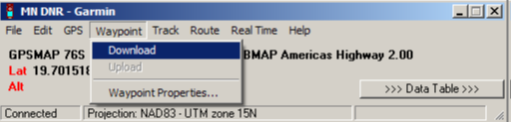
Click on “Waypoint” and then “Download” to download your waypoints into the program.
Or click on “Track” => “Download” if you want to download your Tracks.

DNR_1


After the data is downloaded you will receive a message stating the number of records received.
Step 3:

Click on “>>> Data Table >>>” to see the properties of the downloaded data.
Now you are able to edit your data as needed.
After editing your data, save your data as a shapefile to use it in ArcMap.

DNR_Garmin


Please note: DNRgarmin does not create a projection file (*.prj). You will need to define the projection in ArcCatalog or ArcMap to have a projection associated with your shapefile.

jeudi 20 décembre 2012

Georeferencing an image using ArcGIS

Georeferencing involves assigning real-world coordinates to a number of reference points on the image. In ArcMap, this is done using the tools available in ArcMap’s Georeferencing Toolbar. In this example a map is used which has real-world coordinates
labelled near the four corners of the map. These points can be identified and assigned their real-world coordinates. These points are referred to as ‘control points.’
1. Add the image file to ArcMap (by using the 'add data' button just as you normally would - you will be asked if you wish to 'build pyramids,' which you can do to shorten the display time. Building pyramids will result inproduction of *.aux and *.rrd files).
2. Select View/Toolbar/Georeferencing

Georeferencing an image using ArcGIS

3. After selecting control points, zoom into one of them so you can place your mouse as accurately as possible on the point.
4. Under Georeferencing, uncheck “Auto-adjust.”
5. Click on the “Add control points” button.
6. Click on the identified point on the map image and move the mouse somewhere a bit further away. Then click the mouse again. You’ll see a line between a green point and a red point.

Georeferencing an image using ArcGIS


7. The green point is at what’s referred to as the ‘source.’ The red point is at what’s referred to as the ‘target.’ If you wanted to warp the image such that it overlaid with a data layer you had added to ArcMap, the red point would need to be placed at the corresponding point of the existing data layer. However, in this example, you are not warping the image to overlay with a data layer in ArcMap. Rather, you’ll need to provide ArcMap the target coordinate values. To do this, click on the ‘view link table’ button on the Georeferencing toolbar. Change the map x and map y values to reflect the real-world
values read from the map.


Georeferencing an image using ArcGIS

8. Repeat steps 6 and 7 for all of your control points. If you make a mistake, you can a control point by selecting the appropriate row in the table and pressing the “Delete” key on your keyboard. In this example, the final table looks like this:

Georeferencing an image using ArcGIS

9. When you have finished entering control point data, click on OK to close the link table.
10. Select Georeferencing/Rectify. In the next window, change any of the defaults if desired. When the rectification process is finished, you will see that .tif and *.tfw files have been created.
11. Select Georeferencing/Update Display to view your results. Now you should be able to overlay other data (provided those data use the same coordinate system). This example below shows that data for states and major roads overlay with the image.

Georeferencing an image using ArcGIS